LANCE — LoRa ATAK Native Communication Extension — is an ATAK plugin that carries tactical data over a resilient off-grid LoRa mesh using Meshtastic or MeshCore radios.
Installation
LANCE is an ATAK plugin. Install ATAK-CIV on the device first, then install the LANCE plugin. Free is downloaded from Google Play; Pro is unlocked through a one-time in-app purchase on the same build; Enterprise is delivered through a separate organizational distribution and license flow.
First Launch
Open ATAK and tap the LANCE button in the toolbar. LANCE opens as a panel beside the map — in ATAK it's technically called a DropDownReceiver, but it isn't a drop-down menu. Across the top are three tabs — Info, Events and User — plus a gear icon that opens LANCE Preferences. The link indicator shows whether a radio is connected and configured.
Connecting the Radio
LANCE connects to the radio directly — over Bluetooth (BLE) on every edition, or USB serial on Pro and Enterprise (hardware validation ongoing). Pair or plug in your Meshtastic or MeshCore device, then select it in LANCE. On connect, LANCE checks the radio against your selected operating mode and writes the effective channel template if needed — the link stays yellow (configuring) until the radio is verified, then turns green. You do not need the Meshtastic or MeshCore app for any of this. The connection, configuration and data exchange all run on our own proprietary codec — only the radio's stock firmware interfaces are used.
MeshCore radios
Beside Meshtastic, LANCE supports MeshCore companion radios — over Bluetooth on every edition, or USB on Pro and Enterprise. LANCE recognizes which protocol the connected radio speaks and switches automatically; every Lite function works the same on both.
- Radio Protocol setting: at the top of the radio settings you can choose Automatic (recommended), Meshtastic only or MeshCore only.
- Pairing: for Bluetooth, pair the radio in Android's Bluetooth settings first. The PIN is shown on the radio's display; radios without a display use 123456. Over USB, just plug it in.
- Setup with consent: the first time LANCE meets a MeshCore radio it hasn't set up yet, it asks before changing anything. It then writes its own channel into a free slot and applies the radio parameters from your LANCE preset. These changes are permanent and visible to other MeshCore apps; channels in other slots are kept.
- Requirements: MeshCore companion firmware v1.17 or newer, and one of the regions EU 868, US 915 or Australia/New Zealand 915.
- Fewer settings: settings that only apply to Meshtastic — such as hop limit, device role and rebroadcast mode — are hidden while MeshCore is active. Their values are kept.
Connection indicator
LANCE shows the radio link as a three-state indicator. It is readback-gated, so it never reports a link it hasn't actually verified:
| State | Meaning |
|---|---|
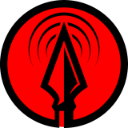 | No radio found. The phone can't see a radio over Bluetooth or USB — pair or plug one in, check it's powered, and make sure no other app is holding it. |
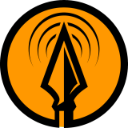 | Configuring. LANCE is reading the radio's configuration, or writing your operating-mode template to it and verifying the result. |
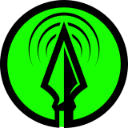 | Ready. The radio is connected and its configuration has been verified by readback against your operating mode — including the channel and PSK state. |
Recommended Hardware
The current tested LANCE baseline is a Meshtastic radio on the RAK4631 / WisBlock platform. Other Meshtastic-compatible radios may work, but should be treated as experimental until a successful LANCE field test — document the model, firmware and BLE behaviour first. For MeshCore, use a companion radio running firmware v1.17 or newer.
Permissions
Android requires Bluetooth and Location permissions for BLE scanning. Grant these on first launch; without them, LANCE cannot discover or connect to your radio.
A 100% proprietary codec
Everything about how LANCE talks to the radio is our own work. LANCE does not use open-source Meshtastic application code — not mesh.proto, and nothing taken from the Meshtastic companion app or the official Meshtastic ATAK plugin. We wrote our own codec, with our own protocols, and use only the documented interfaces of the stock Meshtastic firmware to exchange bytes with the radio.
That includes how LANCE connects over Bluetooth and USB, how it writes and verifies radio configuration, and how it frames and parses every payload. Each of these is an in-house implementation where we've made deliberate optimizations for the best possible field experience and the simplest onboarding.
The same applies to MeshCore: LANCE speaks the MeshCore companion protocol through its own clean-room codec and carries the unchanged Lite family inside MeshCore channel messages.
The Lite protocol family
To carry ATAK data across a low-bandwidth LoRa mesh, we designed a dedicated, purpose-built standard for every ATAK function — and we call this set the Lite family. There's a protocol for each capability:
| Protocol | Carries |
|---|---|
| PositionLite | Self position / PLI, as compact UPDATE and periodic FULL identity frames |
| MarkerLite | Markers and points, with acknowledgement-based delivery |
| ShapesLite | Circles, ellipses, rectangles, polygons and freehand lines |
| RangeLite | Range & bearing lines |
| RouteLite | Routes and navigation lines |
| ChatLite | Text and CASEVAC, with modern short-string compression |
| AlarmLite | Emergency alerts (911, contact, geo-fence) |
The Lite family is engineered for maximum information at minimum data. We use modern compression and strip out absolutely everything that isn't needed — only what's required to faithfully reconstruct a complete CoT message on the far side is ever transmitted. The guiding principle is simple: every byte that doesn't have to be sent, isn't. That's how a position update lands in roughly 8 bytes and most actions stay near 35 bytes on the air.
Stock firmware, proprietary stack
To be unambiguous about where the line sits:
- The radio firmware is stock Meshtastic or MeshCore. You flash and run the standard, unmodified Meshtastic firmware or MeshCore companion firmware on your device.
- Everything above the firmware interface is LANCE. The connection handling, configuration provisioning, the codec and the entire Lite protocol family are 100% proprietary, in-house development.
- We use only public firmware interfaces. LANCE communicates with the radio the way any client is intended to — through the firmware's documented BLE/serial interfaces — and nothing else.
Object naming on receive
To save airtime, the Lite protocols never transmit an object's display name — only a small type code plus two identifiers: the sender's node ID and a per-object ID. Each receiver reconstructs a stable, human-readable label locally, so the same object shows an identical name on every connected client without a single extra byte on the air. The scheme is shared across all Lite families through one common formatter.
A reconstructed name has the form “base label + five-character code” — for example HostileMine K7QM2. The code is Base32 (alphabet 0123456789ABCDEFGHJKMNPQRSTVWXYZ, omitting I, L, O and U to avoid confusion) and splits into a 3-character sender segment and a 2-character object segment. The sender segment is a stable fingerprint of the sender — the same sender always produces the same three characters — while the object segment identifies the individual object and is scrambled so it never looks sequential.
Opening the LANCE menu
LANCE opens in ATAK as a panel beside the map — an ATAK DropDownReceiver, not a drop-down menu. Open it from the ATAK toolbar (or the plugin/overflow menu) to reveal the LANCE panel. Across the top are three tabs — Info, Events and User — and a settings gear that opens LANCE Preferences. You can also reach the same preferences through ATAK Settings → Tool Preferences → Specific Tool Preferences → LANCE Preferences.
Info tab
The Info tab is your status-at-a-glance surface. It shows:
- Local node identity — the connected radio's node and your own call sign / identity as it goes out over the mesh.
- Lite-family readiness — whether Marker, Shape, Range and the other Lite functions are ready to send on the current link.
- Live radio metrics — current signal (RSSI), SNR, battery and hop information, plus the link state (configuring / yellow vs verified / green).
Events tab
The Events tab is the shared sync list for the Lite protocol family: every Lite-family object you create, receive, or delete shows up here as a card — markers, shapes, range & bearing lines, routes and more. (Position/PLI is automatic and does not appear here.) Every card carries:
- a family icon for its type (Marker, Shape, R&B, Route, …);
- the object's display name, family and revision;
- an ACK n (acknowledgement) count on markers and range lines once confirming peers reply;
- a coloured status stripe, an action button, and a separate delete (trash) button.
The action button reflects exactly what the entry needs:
| Button | Meaning |
|---|---|
| Send | A new or changed local object is waiting to sync to the mesh. |
| Sending | An update is in flight; a second send from the same card is blocked. |
| Sent | The current revision is synced, or a received remote object is being tracked. |
| Resend / Retry | The last send or delete failed (e.g. no radio connected, timed out) and can be tried again. |
| Deleting / Deleted | A delete is in flight, or the entry is a finished local delete / remote tombstone. |
A Send all header appears whenever anything is pending and sends across all pending families at once (with a confirmation first). Finished Deleted and tombstone cards are hidden by default; the Show deleted toggle at the end of the list reveals up to the 300 most recent. A normal tap on an active card recentres the ATAK map on that object — the marker, the shape's centre, or the start of the range line. A long-press pins or unpins a card: a pinned card keeps its status colour but gets a thicker border and stays at the top, above a divider that separates pinned entries from unpinned ones.
User tab
The User tab lists the mesh participants LANCE knows about — the contacts and nodes around you, drawn from received PLI and node info. Use it to see who is on the mesh, jump to someone on the map, and control how their traffic reaches you. Each user entry supports two actions:
- Pin — the same idea as pinning a marker: long-press a contact to keep them at the top of the list (its border thickens and it sits above a divider separating pinned from unpinned entries).
- Mute — silences a contact completely. While a user is muted, every incoming object from them is discarded and never shown — chat, markers, shapes, routes and any other events — until you unmute them. Muting asks for a confirmation first so you can't silence someone by accident; unmuting is immediate (no confirmation) so you can lift it quickly.
Muting and pinning are local-only UI states — they are never sent over the mesh, and a muted user is not notified.
Pinning & focus
The Events and User lists share two interactions — tap to focus and long-press to pin:
- Tap to focus — tap any active entry and the map recentres and zooms straight to that object: a contact's last known position in the User list, or a marker, shape or route in the Events list. The fastest way to locate a specific user or item on the map.
- Long-press an active card to pin or unpin it. The pinned card gets a thicker border and moves to the top, above a divider that separates pinned entries from the rest.
- You can pin several entries — they stack in the order you pinned them (first pin highest).
- Unpinning returns the entry to its normal, stable position in the list.
- Delete and tombstone cards can't be pinned, and tapping them doesn't recentre the map.
- Pins are a UI convenience of the current panel only — they aren't saved to history or sent over the mesh, so they may not survive a plugin restart.
The ATAK radial menu
The radial menu is ATAK's circular action menu that appears when you tap (or long-press) a map object — markers, shapes and range lines fan out a ring of quick actions around the item. LANCE plugs into it so you can act on an object directly on the map, without first opening the LANCE Events tab:
- Send over mesh — push the selected object onto the LoRa mesh straight from its radial menu.
- Delete over mesh — remove it locally and, where supported, across the mesh, in one action. To reach it, press and hold the trash (delete) icon in the radial menu until the Delete over mesh action appears. Available on Pro and Enterprise.
This keeps the common workflow — drop a marker, send it; remove a marker, delete it everywhere — at your fingertips on the map, while the Events tab remains the place to review status, retry failed sends, and manage history.
Position Sharing
Position location information (PLI) is automatic self-position sync. It sends on a configurable reporting interval as two frame types: a compact UPDATE (position only, ~8 bytes) most ticks, and an occasional FULL frame that re-establishes identity — call sign, team colour, role and battery. A short burst of FULL frames goes out after the radio links up and whenever your identity changes, then it settles into roughly one FULL for every nine UPDATEs. PLI is fire-and-forget (no acknowledgement), which keeps it light. See the dedicated Position Sharing page for planning figures.
A teammate whose device has no GPS fix yet still appears in the User tab as soon as they're on the mesh — they're only placed on the map once a real position arrives, so nobody is shown at a false location. With Radio GPS on Pro, your own position can come from the radio's GPS instead of the phone.
Marker Sharing
Markers are sent across the mesh and reconstructed as native ATAK objects on the receiver. Delivery is acknowledgement-based: a marker turns green only after a real remote ACK, not when transport merely progresses. You can send and delete markers straight from the ATAK radial menu, or manage them from the Events tab.
Shapes & Range
LANCE shares ATAK's drawing objects — circles, ellipses/ovals, rectangles, closed polygons and freehand lines — plus range & bearing lines (R&B), as lightweight mesh objects. A shape that is too complex to fit a compact mesh payload is simplified to fit — exactly the way routes are — rather than dropped, so its overall form is preserved; open lines keep their exact endpoints, and LANCE tells you when a shape was simplified or is too large to send. Shapes carry the full 24-bit RGB colour, so the colour you draw is reconstructed faithfully on every client.
Routes
Routes and navigation lines are shared across the mesh and rebuilt as native ATAK routes on every connected client, with acknowledgement-based delivery and the route's full RGB colour preserved. A whole route is sent within a single normal mesh payload — which is exactly why a very large route may not arrive point-for-point identical. Here's what governs that:
- Original detail: a source route of up to 65,535 points can be processed.
- On-the-wire cap: the transmitted route holds up to 255 points (minimum 2).
- Fit, don't truncate: if a route is too detailed for the payload, LANCE simplifies it to fit rather than cutting it off — the start, end and overall shape are retained.
- Bounded deviation: when a route does need simplifying, LANCE keeps the simplified line within a small, automatically chosen distance of your original — it never just rounds off to kilometres. For everyday routes that distance is effectively negligible (well under a metre to a few metres), so they stay accurate. The much larger end of the range only ever comes into play for extreme, continent-scale routes with tens of thousands of points, where a little deviation is unavoidable to make them fit at all.
- Efficient encoding: points are stored as compact relative steps at about 1 m precision, so straightforward routes stay small without any simplification at all.
Chat & CASEVAC
Chat sends compact text across the mesh from ATAK's normal chat tool — to all chat rooms, or as a direct 1:1 message to a live map contact. Messages are compressed to fit more text into a single LoRa packet, so you'll rarely hit the limit on normal tactical traffic. CASEVAC adds a structured 9-line casualty-evacuation workflow that rebuilds as a proper ATAK medical event on the receiver. Both are designed for brevity to protect channel airtime.
Emergency Alarms
LANCE listens to ATAK's stock Alarm Tool and sends the supported alerts over the mesh automatically — 911 Alert, Ring the Bell, Troops in Contact and Geo-fence Breached, plus the matching cancel. There is no separate LANCE alarm screen: trigger the emergency in ATAK's Alarm Tool and it rebuilds as a standard ATAK alert on remote clients. Cancels bypass rate-limiting so alert termination is delivered immediately.
Node Status
The node view reports RSSI, SNR, battery and hop distance for connected radios, giving you an honest read on link quality before you depend on it.
LANCE also shows the battery level of the connected radio itself and warns in good time before it runs low. The radio's transmit power is set right in the LANCE panel — see Transmit power.
Region & frequency bands
Region is the first radio setting, and it decides which legal sub-GHz frequency band the radio uses. It defaults to EU and is chosen independently of your operating mode — presets don't come in separate EU/US variants, they simply apply on top of the region you've picked.
| Region | Band | Availability |
|---|---|---|
| EU868 | 868 MHz (Europe) | All editions · default |
| US915 | 915 MHz (US) | All editions |
| ANZ, Japan, Korea, Ukraine 868, India, Brazil, Taiwan, Thailand, Malaysia 919, Singapore 923, Philippines 915, Kazakhstan 863, Nepal 865 | regional sub-GHz | common legal band per market |
| 433 MHz, EU SRD variants, New Zealand 865 | alternate / SRD | Pro |
| Every supported region | — | Enterprise |
Operating modes & presets
The Operating Mode picker chooses a scenario-oriented preset that fills the detailed radio values for you — modem speed, channel, hop limit, position interval, ACK and rebroadcast — so you don't have to understand Meshtastic internals to be set up correctly. In a preset, those values are visible but locked; Manual mode unlocks them for expert control where your edition allows.
Free exposes the single LANCE Free preset. Pro adds the full preset set plus Manual mode. Each preset's effective values:
| Preset | Modem | Hop | PLI | ACK | Rebroadcast | Tier |
|---|---|---|---|---|---|---|
| LANCE Free | Medium Fast | 1 | 60 s | off | ALL | Free + |
| Pro | Long Fast | 3 | 30 s | on | LOCAL_ONLY | Pro |
| Fast Short Range | Short Fast | 2 | 10 s | on | LOCAL_ONLY | Pro |
| Large Team | Medium Fast | 2 | 120 s | off | LOCAL_ONLY | Pro |
| Long Range | Long Slow | 4 | 300 s | off | LOCAL_ONLY | Pro |
| Low Traffic | Long Fast | 2 | 600 s | off | LOCAL_ONLY | Pro |
| Manual | All expert values editable and provisioned | Pro / Ent | ||||
LANCE Free keeps rebroadcast ALL in both Free and Pro so Pro users can stay compatible with the Free baseline. All other managed presets use LOCAL_ONLY to keep the focus on the local LANCE mesh and avoid relaying unrelated traffic. Changing a preset or a provisioning value drops the link out of green and re-verifies the radio before going green again.
Modem presets explained
A modem preset is the LoRa trade-off between speed and range. Faster presets move data quicker and use less airtime per message, but reach less far; slower presets travel further but cost more airtime and add latency. From fastest/shortest to slowest/longest:
| Preset | Character | Good for |
|---|---|---|
| Short Fast | fast, short reach | dense teams at close range; lowest airtime |
| Short Slow | — | short range with a little more robustness |
| Medium Fast | balanced (Free default) | general use; good all-round baseline |
| Medium Slow | — | medium range, more robust |
| Long Fast | long reach, still brisk (Pro default) | the typical tactical sweet spot |
| Long Moderate / Long Slow | longer, slower | extended range, sparse teams |
| Very Long Slow | maximum reach | longest range; highest airtime, lowest throughput |
Channel & encryption (PSK)
Mesh traffic is carried on a named radio channel, and encryption is set by that channel's pre-shared key (PSK). LANCE offers three PSK modes:
- No encryption — the channel runs with an empty key. This is the Free default (channel LANCE-free).
- LANCE default key — a managed key for the LANCE mesh.
- Custom 256-bit key — your own encryption profile, entered as 64-character hex or in Meshtastic's Base64 format.
Custom keys and the LANCE managed key are Pro and Enterprise capabilities; Free operates without encryption. A custom PSK is never shown in summaries, logs or field-log exports — diagnostics keep only a non-secret length and checksum, never the key itself. After any channel or key change, LANCE re-verifies the radio (including the PSK state) before the link goes green, so a misconfigured key shows as configuring rather than silently failing.
Transmit power
The LANCE panel has a transmit-power slider that runs from 2 dBm up to Max, on every edition and for both Meshtastic and MeshCore radios. LANCE caps the value at the lower of the radio's hardware limit and the legal limit of your region, shows both limits, and verifies every change by reading the radio back before the link goes green again. If a radio can't confirm its amplifier gain, LANCE asks before applying a higher value.
Radio GPS
If your radio has its own GPS, Use Radio GPS makes it the position source for your ATAK self marker and outgoing PLI. Only fresh fixes are used. Two companion settings control it: the Radio GPS Polling Interval sets how often a fix is taken from the radio, and Radio Position Details chooses between Standard (altitude, DOP, satellites and time) and Vehicle, which adds heading and speed.
Position reporting interval
How often your own position (PLI) goes out is set by the Position Reporting Interval. You can choose from a set of cadences — 10 s, 30 s, 60 s, 120 s, 300 s, 600 s, 1200 s, 1800 s — and each preset comes with a sensible default (LANCE Free uses 60 s, the Pro preset 30 s, Long Range 300 s, and so on).
LANCE sends a short burst of full identity frames when the radio first links up and whenever your identity changes, then settles into roughly one full frame for every nine compact updates. Shorter intervals give a fresher picture but cost more shared airtime as the team grows — see LoRa Airtime for planning figures.
Request ACK
Request ACK controls whether your transactional objects (markers, shapes, range lines and routes) ask receivers for a confirmation. With ACK on, an object turns green only after a real remote plugin confirms it, and the Events card shows an ACK n count of unique confirming peers. With ACK off, sends are fire-and-forget.
Free sends with ACK off by default; the Pro preset turns it on. Position/PLI never uses ACK regardless of this setting — freshness comes from the next interval tick. See ACK & confirmed delivery for how retries and airtime work.
Free vs Pro settings
A quick reference for what's adjustable in each edition:
| Setting | Free | Pro |
|---|---|---|
| Operating mode | LANCE Free only | All presets + Manual |
| Region | Common legal band | + alternate & SRD bands |
| Modem preset | Preset-managed | Editable in Manual |
| Encryption (PSK) | None (open channel) | LANCE key or custom 256-bit |
| Hop limit | Preset-managed | Editable (1–7) |
| Position reporting interval | Adjustable | Adjustable |
| Request ACK | Off (managed) | On by default, editable |
| Relay / bridge to server | — | Optional light scope |
| Delete Lite History | — | Available |
| USB serial transport | — | Available |
| Radio protocol | Automatic, Meshtastic or MeshCore | Automatic, Meshtastic or MeshCore |
| Transmit power | Adjustable | Adjustable |
| Use Radio GPS | — | Available |
LoRa Airtime & Duty Cycle
LoRa is built for range, not throughput. On the LongFast modem preset the nominal data rate is roughly 1 kbps, and EU868 allows about a 10% duty cycle per transmitting radio. Channel load is the aggregate airtime of every radio sharing the slot — so plan intervals and team size around the channel, not the byte count.
| Planning figure | Approx. value | Notes |
|---|---|---|
| Airtime per acknowledged object | ~1 s | Send + ACK on LongFast |
| PLI cadence cost (30 s) | ~1.6% / device | Compact position update |
| ~5 devices @ 30 s PLI | ~8% aggregate | Before markers / shapes / chat |
| Usable RSSI floor | down to −112 dBm | Terrain dependent |
Object & Payload Size
LANCE objects are deliberately compact — on the order of tens of bytes over the air. A position UPDATE is around 8 bytes of payload, a marker around 16, a shape 16–23, and a delete just 6; over the air, including LoRa overhead, most actions are roughly 35 bytes. Coordinates use a compact quantization with about 1.2 m precision in latitude (and finer toward the poles in longitude), so the picture stays accurate while the packets stay tiny. The limiting factor on LongFast is airtime, not payload size — concise, field-relevant data is always the right design.
Range & Hops
Line-of-sight range can reach kilometres; dense terrain reduces it sharply. Each relay is a hop — more hops extend reach but add latency and airtime. The Free preset uses a conservative hop limit; presets raise it where appropriate.
ACK & Confirmed Delivery
An ACK (acknowledgement) is a small reply a receiver sends back to confirm it actually got your object. LANCE uses ACKs to make delivery honest: a marker, shape or range line turns green only after a real remote ACK — not when the radio merely reports transport progress. The Events card then shows ACK n, counting unique confirming peers (a teammate three hops away still counts as one).
If no ACK arrives, LANCE retries the send once after 30 seconds, then stops — it won't keep hammering the channel. Receivers reply with a single ACK, lightly jittered to avoid everyone answering at the same instant. Because each acknowledged action costs both the send and the return ACK, confirmed delivery is reliable but not free in airtime — roughly a second per acknowledged object on LongFast. Position/PLI is deliberately fire-and-forget and never acknowledged, which keeps it cheap.
Battery Usage
Continuous radio activity draws power on both the phone and the radio. Longer reporting intervals and conservative hop limits extend field endurance.
Troubleshooting · Device not found
Confirm Bluetooth and Location permissions are granted, the radio is powered and in range, and no companion app is holding it. Re-scan from the LANCE link panel and keep radio ownership on the direct BLE path.
Link stays yellow
Yellow means LANCE is still verifying or rewriting the radio to match the selected operating mode. Give it a moment after connect or a preset change; if it persists, the radio config (channel, region, PSK state) does not yet match the template. Confirm the radio isn't locked to an old channel name.
Nothing received
Verify all radios share the same channel, region and PSK state. Mismatched settings silently prevent nodes from seeing each other.
Poor signal
Check RSSI and SNR in the node view. Improve antenna placement, reduce obstructions, or add a relay node to bridge the gap.
MeshCore radio won't connect
LANCE names the cause in its status. Firmware too old means the radio needs MeshCore companion firmware v1.17 or newer. No free channel slot means every channel slot on the radio is in use — free one in the MeshCore app. Bluetooth pairing required means the radio must first be paired in Android's Bluetooth settings. If the region has no MeshCore frequency, switch to EU 868, US 915 or Australia/New Zealand 915. If you declined the setup prompt, LANCE asks again on the next connect — or set Radio Protocol to Meshtastic only.
Downloads
Grab the offline manuals and guides for field reference.
What's coming
LANCE ships capabilities once they're field-validated. In active development or on the near-term roadmap: compressed image previews (QuickPic), a live signal heatmap, link-quality ACKs, a WinTAK plugin and broader network bridging. See the roadmap for details and status.